Configure your robots.txt with WordPress
To do that, go to SEO, PRO, robots.txt tab.
Check the iOS toggle associated with Robots.txt.
Then, check Enable robots.txt virtual file.
In Virtual Robots.txt file textarea, create your robots.txt and click Save changes.
To view your robots.txt file, click the button View your robots.txt, or go to https://example.com/robots.txt
Notice that, if your have a physical robots.txt file, this virtual robots.txt file will not bypassed it.

Multisite setup?
Go to your network admin, SEO, robots.txt tab to edit it.
Compare and restore previous versions of your robots.txt
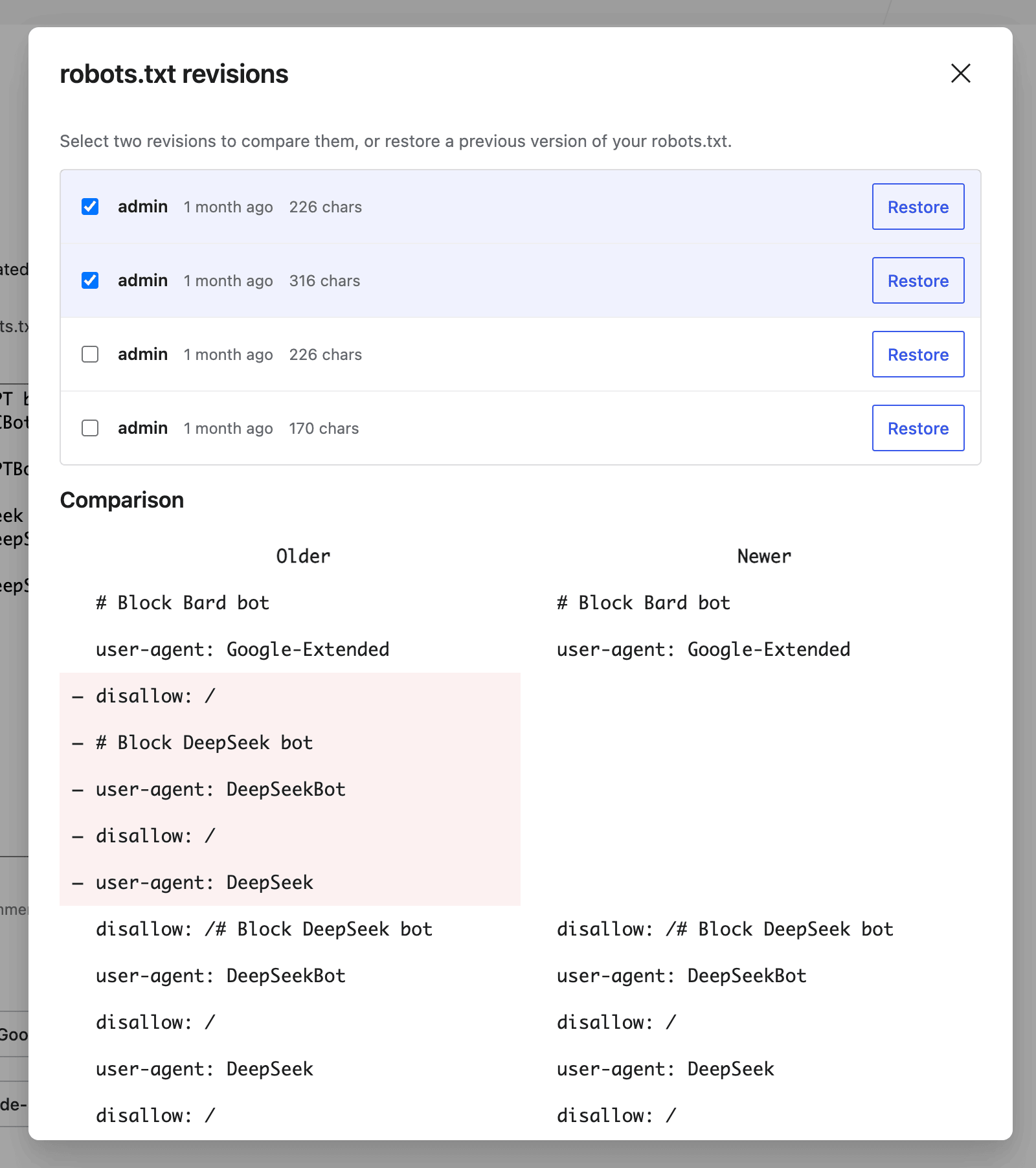
Every time you save a change to your robots.txt, SEOPress PRO automatically records a revision. If a modification breaks something, you can compare versions and roll back in one click, without ever leaving WordPress.
View your revision history
- Go to SEO > PRO > robots.txt.
- Click the Revisions button, next to View your robots.txt. The badge shows how many revisions have been recorded.
- A window opens with the list of revisions: author, date, size, and a Current badge on the active version.
Revisions are recorded automatically each time you save a change to the file. The last 30 versions are kept.
Compare two revisions
Check two revisions in the list: the comparison appears automatically below, with removed lines on the Older side and added lines on the Newer side. This is the easiest way to spot exactly what changed between two saves.
Restore a previous version
- Click Restore next to the revision you want to bring back.
- Confirm with Replace current file?.
The editor is updated immediately with the restored content. Restoring also records a new revision, so you can always go back: nothing is ever lost.