This guide covers SEOPress Insights 3.1 and later. The Insights admin was entirely rebuilt in this version, so the screenshots and wording of older releases no longer apply.
Get your backlinks
Once you have installed and activated your license key using our wizard assistant from Insights, Settings page, Run the wizard button, you will automatically receive your top 1,000 backlinks for your domain name.
A scheduled task refreshes your data every week, automatically.
Add a backlink you already know about
Since version 3.0 you can add a link by hand, for example a partnership or a guest post published before your first import. Click the Add backlink button at the top of the Backlinks page.
Only the Source URL is required. You can also fill in the Target URL, the Anchor text, the Language, the Citation Flow and Trust Flow scores, the First indexed date, the Topic, and tick Nofollow link if the link carries the attribute.
Manually added links appear in the list alongside the ones our API finds, and are included in your exports.
Analyse your backlinks metrics
Go to Insights, Backlinks page to see the complete list.
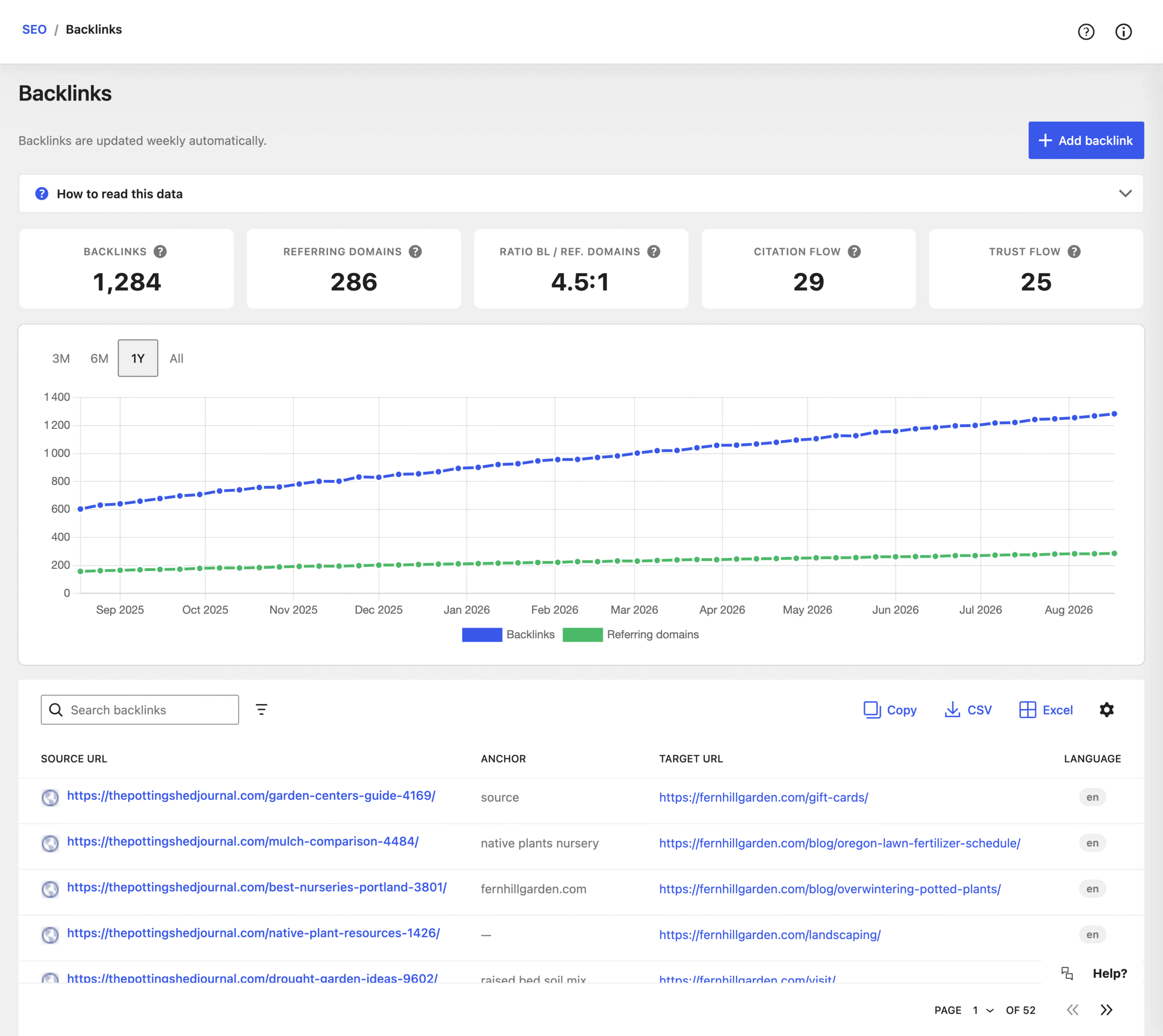
Five cards at the top of the page give you a general overview of your backlink profile. Hover the icon next to a label to get its definition.
- Backlinks: number of backlinks to your site. The more the better.
- Referring domains: number of referring domains pointing to your site. Fifty links from a single site are worth far less than fifty links from fifty sites, so this is the number to watch.
- Ratio BL / Ref. domains: how many backlinks you get per referring domain. The ideal ratio is 1 backlink for 1 referring domain.
- Citation Flow: Citation Flow is a trademark of Majestic. It is a score between 0 and 100 which helps to measure the link equity or “power” the website or link carries.
- Trust Flow: Trust Flow, a trademark of Majestic, is a score based on quality, on a scale between 0 and 100. Majestic collated many trusted seed sites based on a manual review of the web. Sites closely linked to a trusted seed site can see higher scores, whereas sites that may have some questionable links would see a much lower score.
Read the two flows together: a high Citation Flow with a low Trust Flow is the signature of a low quality link.
The graph below shows the evolution of the total number of backlinks and of referring domains over time. Use the Range buttons to switch between 3M, 6M, 1Y and All.
Finally, you have your top backlinks list, ordered by first indexed date, the most recent first.
Each backlink is provided with the following details:
- Source URL: the page that links to you. Open it to check the link is still live and in context.
- Anchor: the clickable text of the link. The exact same anchor repeated everywhere looks artificial.
- Target URL: the page on your site receiving the link. Links pointing at deep pages are usually more valuable than links to the home page.
- Language: the main language used on this website.
- Nofollow: the link asks search engines not to pass authority. It still brings traffic and still counts as exposure, so a nofollow link is not a bad link.
- CF (Citation Flow): 0 to 100, how many links the source page carries. Quantity, not quality.
- TF (Trust Flow): 0 to 100, how trustworthy those links are. A TF far below the CF signals a weak source.
- First indexed: when the link was first seen. Handy to connect a spike of links to a campaign or a piece of content.
- Topic: the subject the source page is trusted on, for example “Computers/Internet/Web Design and Development”. A link from a site in your field is worth more than a generic one.
Guided tour and metric definitions
The Backlinks screen ships with its own guided tour and a How to read this data panel that explains each metric and column.
To replay the tour, open the help icon in the Insights header and click Take the tour.
Search, sort, and customize your table
Click on one of the table columns to sort on it. Click again to reverse the order.
You can show / hide columns, change the density or the number of rows per page from the view options at the top right of the table. The list shows 25 backlinks per page by default.
You can also run a search inside your table from the dedicated Search backlinks field.
Your view is saved for your user account: columns, sorting and layout are restored on your next visit.
Export your data
You want to work on your data using Excel or Google Sheets? Just click Excel or CSV button. Or click Copy to send the data to your clipboard.
Exports always contain your complete backlink list, not only the page displayed on screen.