This guide covers SEOPress Insights 3.1 and later. The Insights admin was entirely rebuilt in this version, so the screenshots and wording of older releases no longer apply.
Add keywords to Insights
There are two ways you can add keywords to track:
- the configuration wizard
- the Settings page under the Insights menu
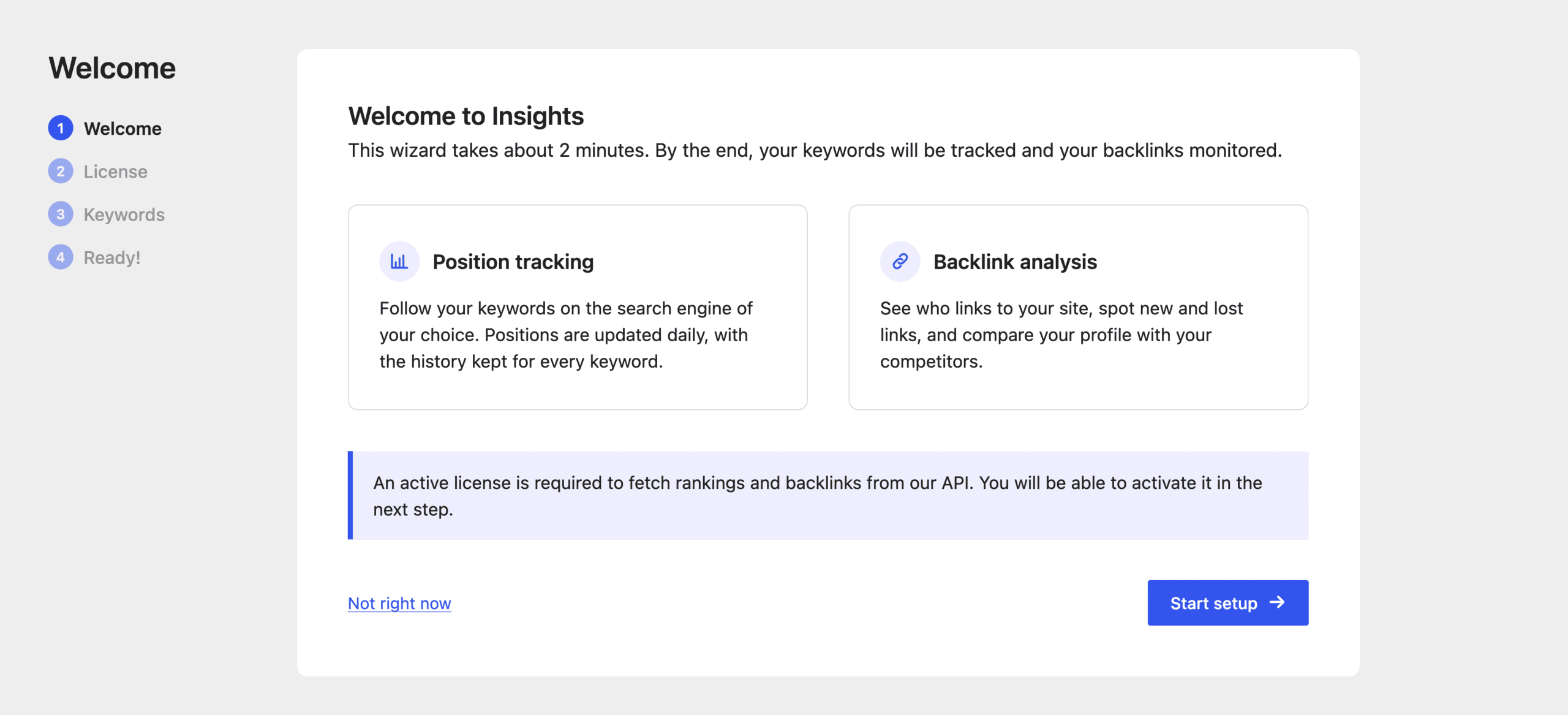
If you are new to Insights, we suggest using the setup wizard to properly configure the plugin. It is accessible from Insights, Settings, then the Run the wizard button.
The wizard opens on the Welcome to Insights screen. Click Start setup.
Activate your license key if you haven’t already and click on Continue.
You are now on the Position tracking step.
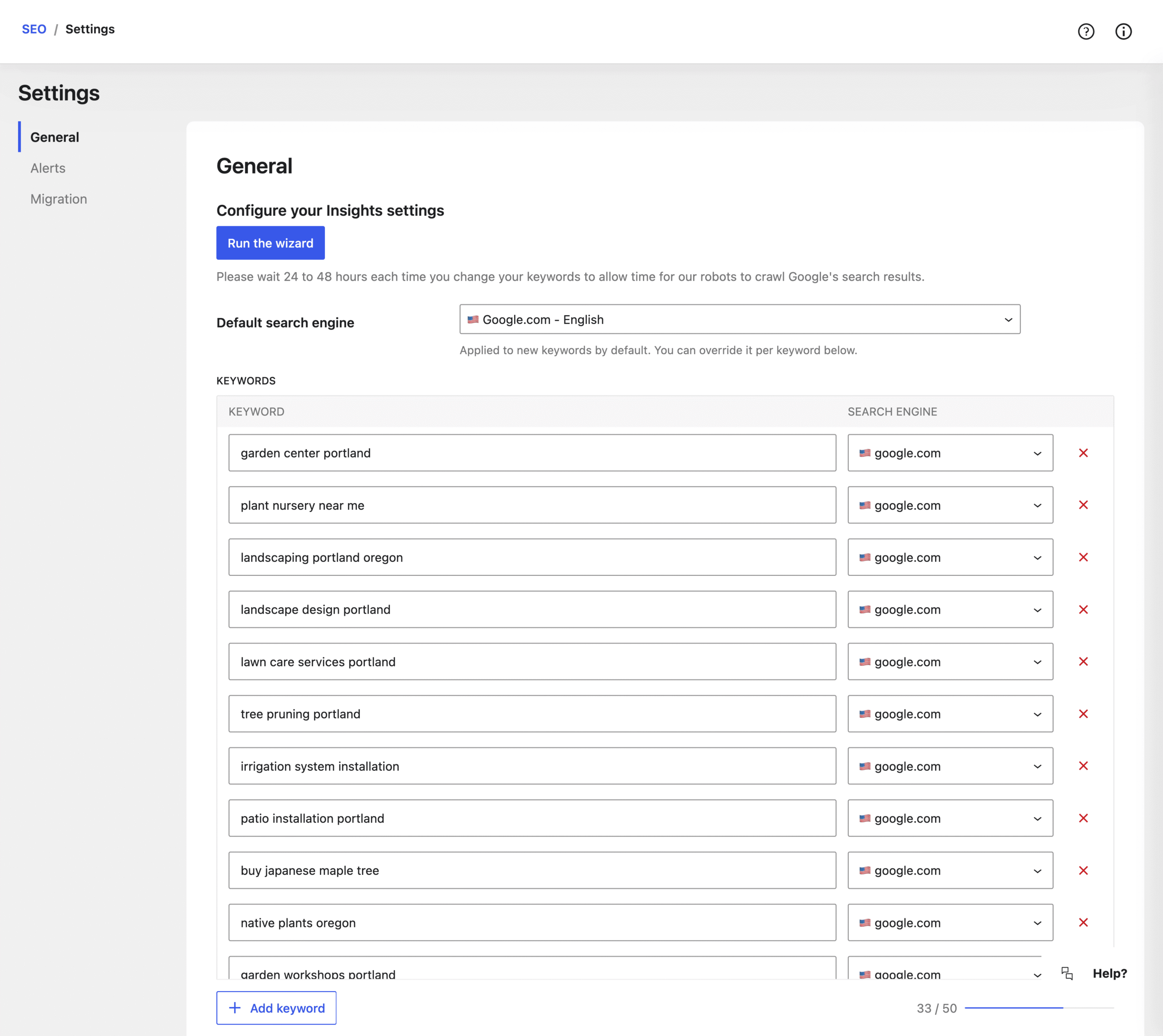
Click Add keyword to create a row, type your expression, then pick the search engine for that row.
You can track up to 50 keywords. The counter and the progress bar below the list show how many you have left. Duplicates are removed automatically.
Click Save and continue when your list is ready.
Not sure which keywords to track?
Click the Add keywords button above the list to open the discovery hub. Nine tools help you build your list:
- Industry Templates: start with a curated list for your industry.
- Topic Cluster: build a keyword cluster around a central topic.
- Trending Keywords: discover what is trending in your niche right now.
- Seed Keyword Expander: turn one keyword into dozens of variations.
- Quick Wins: find low-competition, easy-to-rank keywords.
- Competitor Gap: target keywords your competitors rank for but you don’t.
- Intent-Based Keywords: filter keywords by user search intent type.
- Google Suggest: get live autocomplete suggestions from Google.
- GSC Import: import keywords from Google Search Console and from your focus keyphrases. This tool requires SEOPress PRO connected to Google Search Console.
Tick the suggestions you want, then add them to your list in one click.
Choose your search engine
Above the keyword list, the Default search engine drop-down defines the Google search engine on which we will track your positions.
52 different locations are available.
Choose the one corresponding to your main audience.
If SEOPress PRO is not installed, the wizard presents it on the next step. Click Continue to move on.
On the last step, Ready!, click Go to dashboard.
Wait 24 to 48 hours for your first position statement to appear directly on your WordPress site. The same delay applies every time you change your keywords.
Analyse and monitor your rankings
To see your keyword positions, go to Insights, Rankings page.
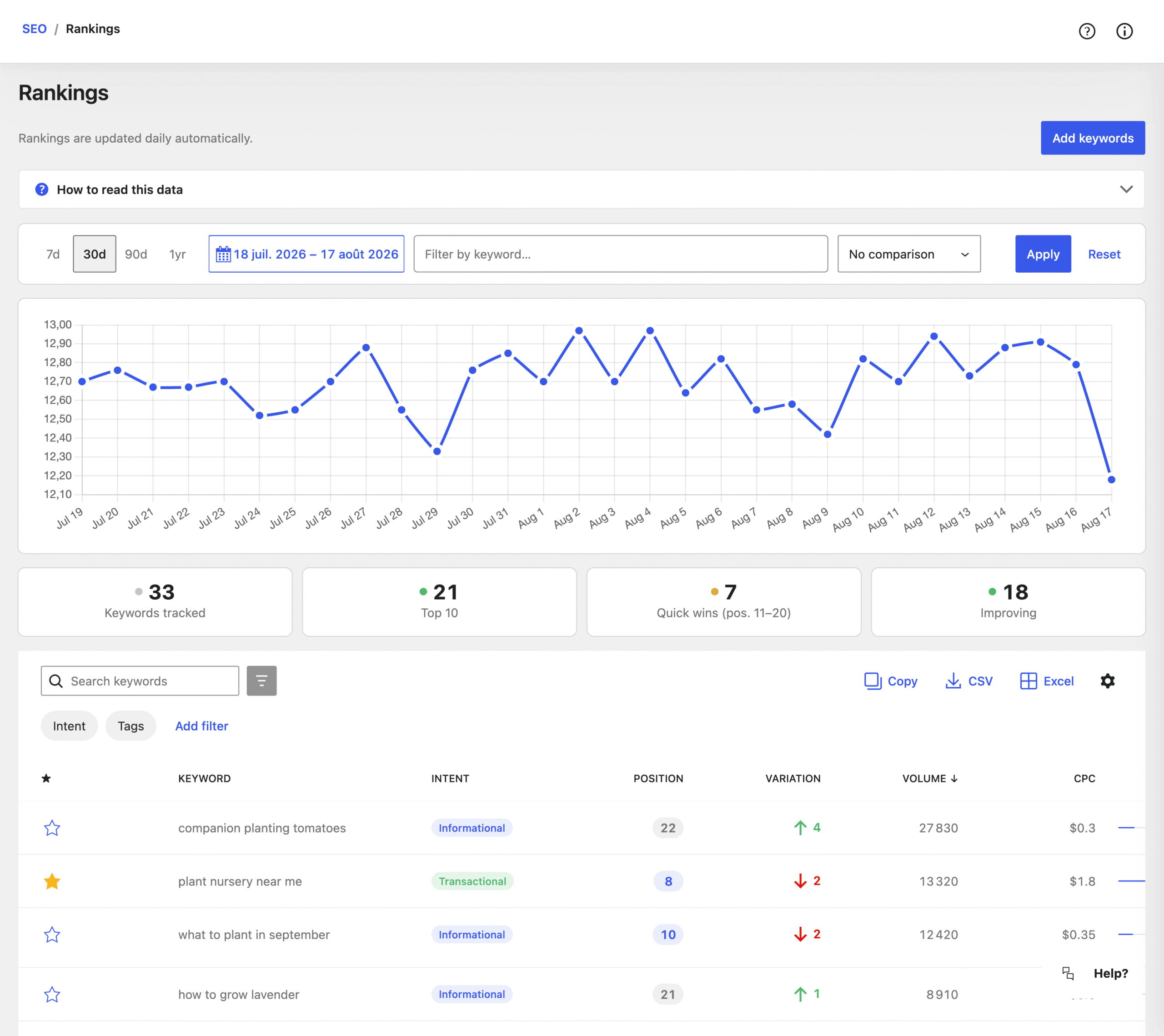
The graph shows the evolution of your average site ranking based on the keywords you follow.
Under the graph, four tiles summarise the health of your SEO: Keywords tracked, Top 10, Quick wins (pos. 11–20) and Improving. Quick wins are your best opportunities: keywords one step away from page one, which usually need a sharper title and a bit more depth rather than a brand new page.
The table below shows the rankings of each keyword with the following informations:
- Favorite: star the keywords that matter most to find them again in the Insights dashboard.
- Keyword: the tracked expression.
- Intent: what the searcher is trying to do (informational, commercial, transactional, navigational). It tells you which kind of page can rank: a guide, a category, a product page.
- Position: rank of your best page for that keyword, refreshed daily. 100+ means it was not found in the first 100 results.
- Variation: change since the previous check. Moving from 14 to 9 is a gain of 5, even though the number went down.
- Volume: average monthly searches for this keyword, on the search engine tracked for that keyword.
- CPC: the Cost Per Click for the keyword in dollars.
- Competition: competition for the keyword in Google Ads. 0 for no competition, 1 for very competitive.
- Visibility: share of the available traffic you capture on that keyword, combining its volume and your position.
- URL: the URL found in Google search results.
- Engine: the Google location tracked for this keyword.
- Tags: tag your keywords by topic, page or client. Tags work as filters, and as segments in the comparison.
- Updated and Added: last refresh, and the date the keyword was added.
Rankings are updated daily, automatically.
Filter and compare your rankings
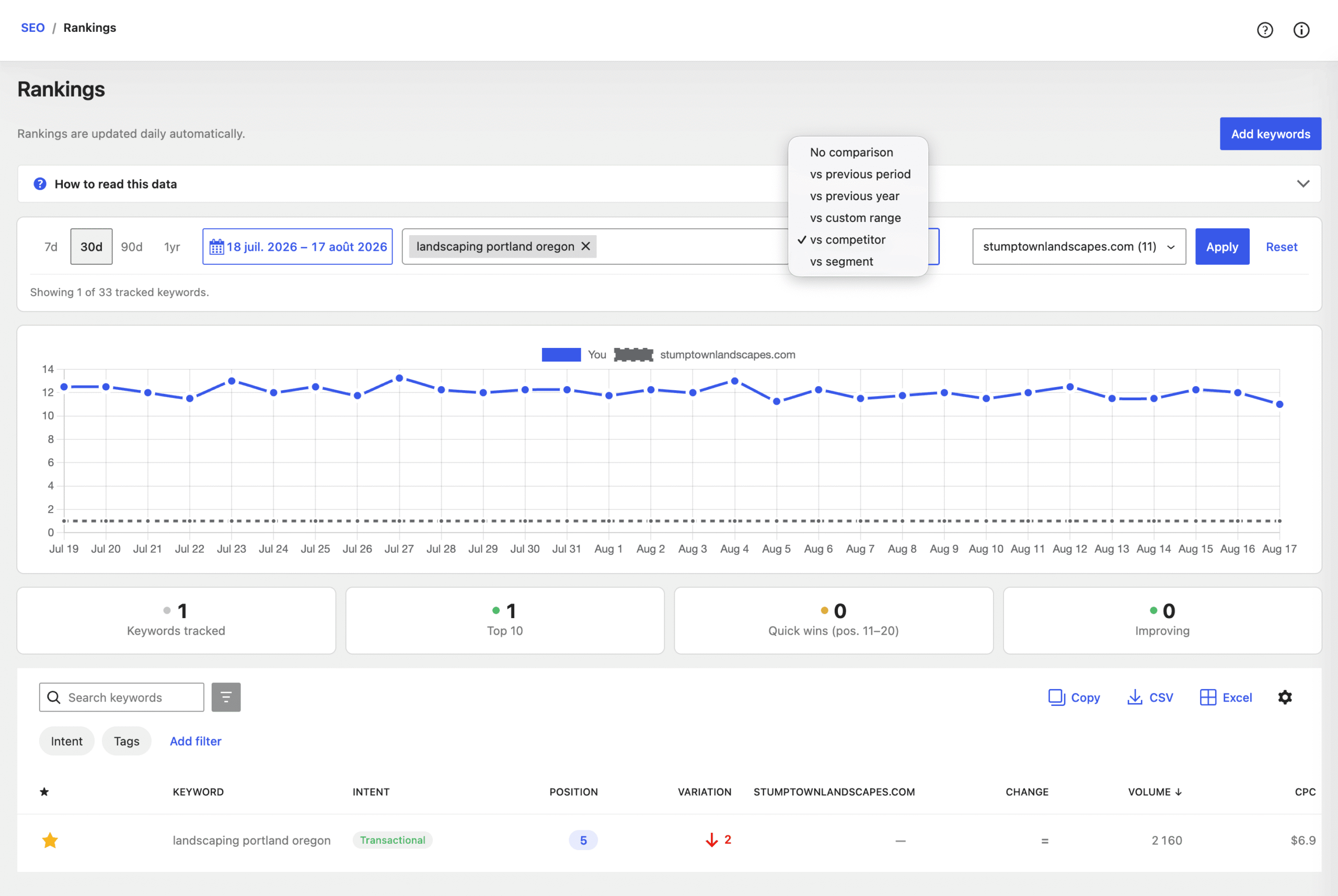
The filter bar above the graph controls both the graph and the table. You can set:
- a period: the 7d, 30d, 90d and 1yr presets, or your own From / To dates;
- a keyword scope: type one or several keywords to narrow everything down to them;
- a comparison, in the Compare to drop-down: vs previous period, vs previous year, vs custom range, vs competitor or vs segment (two tag or intent segments, side by side).
Click Apply to run the filter, Reset to go back to the default view.
When a comparison is active, the table gains a compared position column and a Change column showing the gap between the two.
Guided tour and metric definitions
Every Insights screen ships with its own guided tour and a How to read this data panel that explains each metric and column.
To replay a tour, open the help icon in the Insights header and click Take the tour.
Sort, search and customize your data
You can run a search inside your table from the dedicated Search keywords field.
To sort your data by a specific column, click on its header. Click again to reverse the order.
To show / hide some columns, change the density or the number of rows per page, use the view options at the top right of the table.
You can also filter the table by Intent and by Tags.
Your view is saved for your user account: columns, sorting, filters and layout are restored on your next visit.
To export your data, click CSV or Excel buttons. Click Copy button to save your data to your clipboard. Exports contain every row matching your current filters, not only the page displayed on screen.
Track your competitors with Insights
Go to Insights, Competitors page.
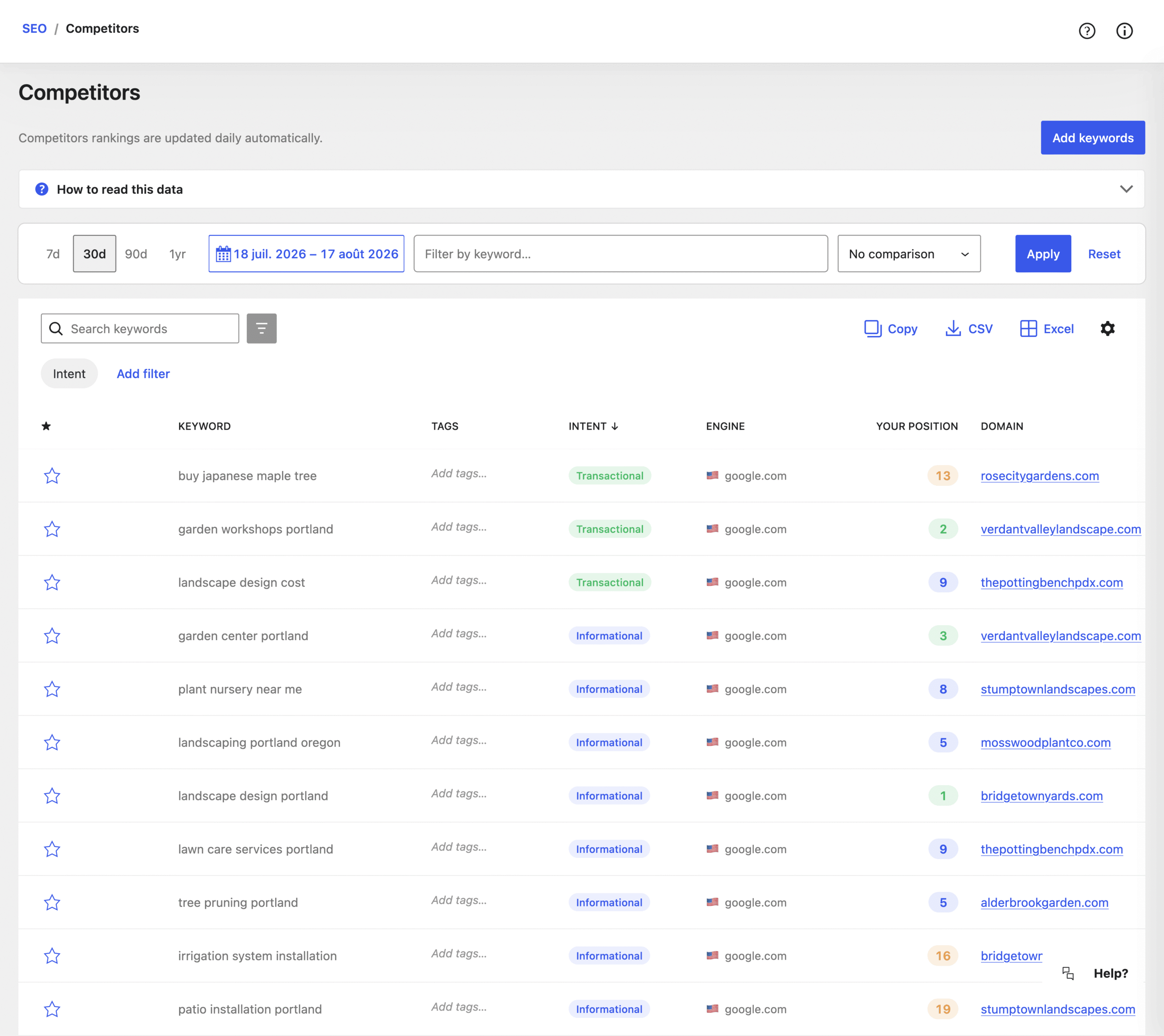
Using the keywords you track with Insights, we show you who ranks first.
Determine who your real competitors are, and put in place a strategy to dethrone them.
The table shows the Domain holding position #1, Your position on the same keyword, and the URL of the page ranking first, along with the volume, CPC, competition and visibility of the keyword.
Like Rankings and Backlinks, you can export, filter, order your data.
Trends are updated daily.