

Here’s the frustrating paradox – WordPress powers over 43% of all websites precisely because it’s marketed as “SEO-friendly out of the box.” Then why do so many fresh installs vanish into the search abyss? The answer isn’t lack of effort – it’s misdirected effort. While owners sweat over keyword density and obsess over meta descriptions, the real culprit is often a handful of misconfigured settings quietly telling Google to stay away. But there’s good news: WordPress SEO isn’t the endless optimization maze you might think. At its core, it’s a finite configuration process centered around seven critical switches. This guide will show you exactly how to flip each switch to its optimal position. No more confusion or invisible content. Just a clear path to search engine visibility.
Choose your WordPress SEO plugin without the analysis paralysis
WordPress may be excellent for content management, but it doesn’t come with native SEO controls. That’s why plugins matter – they’re the control panel for your search visibility. All the major plugins cover the basics – title tags, sitemaps, schema markup. You need to choose the one that works smoothly with your workflow and doesn’t get in the way. If you’re running an agency or managing multiple sites, the choice becomes a business decision. You need:
- A white-label solution that keeps your brand front and center.
- Freedom from per-site licensing fees that add up fast.
- A consistent, reliable tool across all client projects.
That’s where SEOPress stands out. With its unlimited-site license and full-featured toolkit, it’s built for efficiency at scale, delivering everything you need to configure the seven visibility switches we’ll cover next, without the constant upsells or restrictive limitations found elsewhere.
1. The master visibility switches
There are three core settings that define how your site interacts with search engines. Get these wrong, and your analytics will sit lifeless, leaving you baffled about why nothing’s showing up.
The “Discourage” disaster
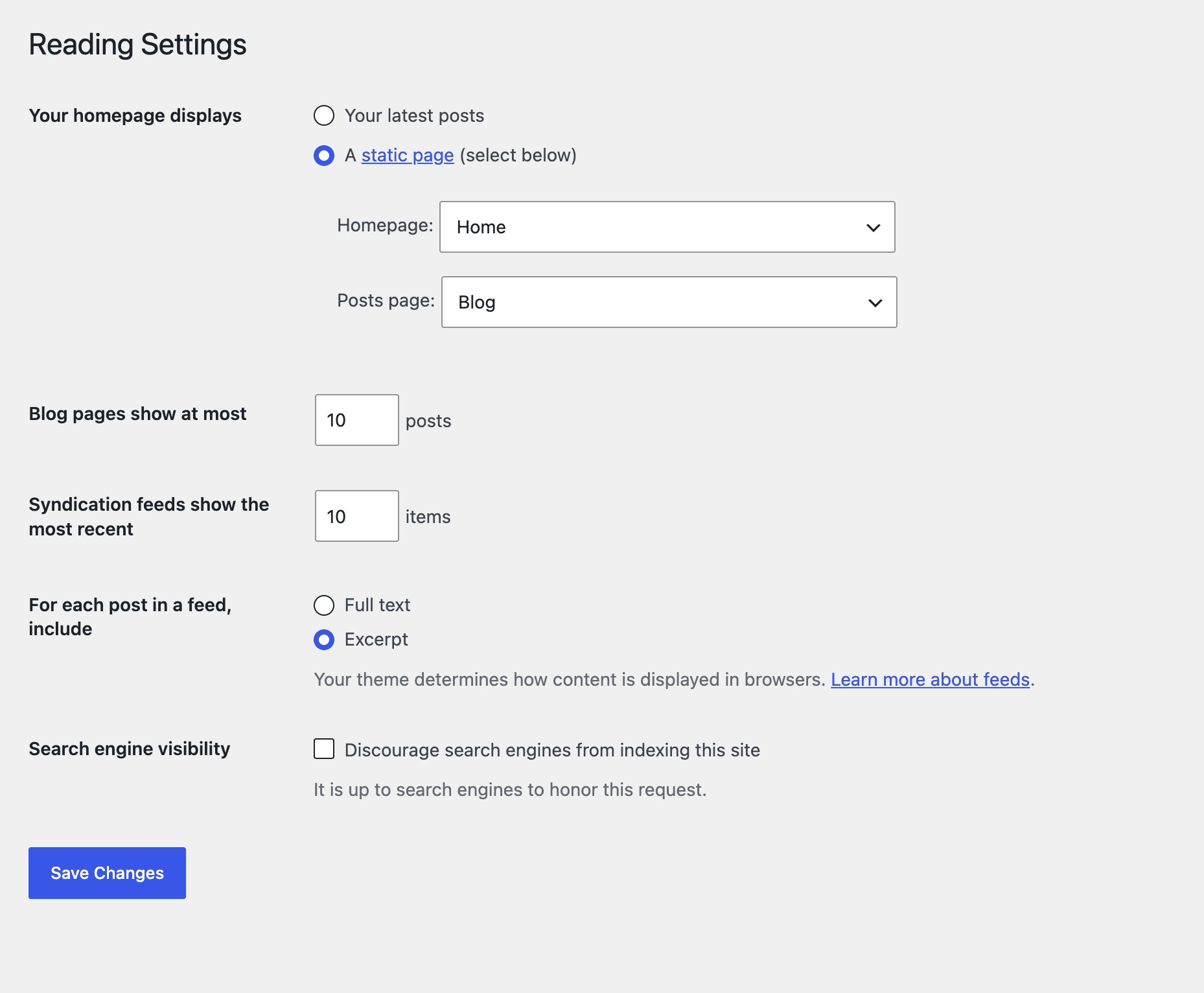
Hidden in Settings > Reading is WordPress’s most damaging checkbox. If you tick “Discourage search engines from indexing this site”, you’ve effectively slammed the door on Google and every other crawler. The outcome is a dead-silent Search Console while you waste hours tweaking plugins and content.
The www vs. non-www decision
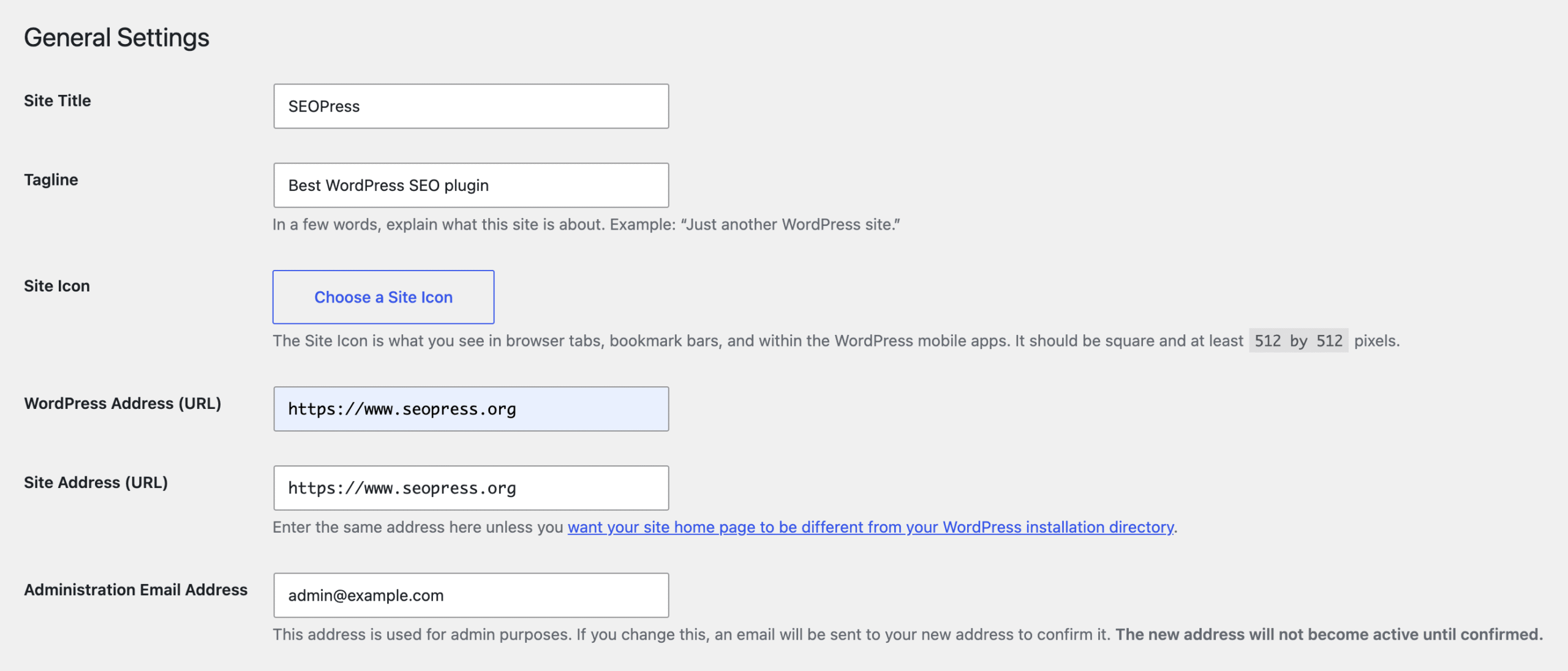
Although www.example.com and example.com may look the same to people, Google treats them as separate sites. You need to choose one in Settings > General and stick to it. WordPress will manage the redirects, but this setting locks in your canonical domain. Changing it later means untangling redirects and risking your rankings.
The permalink commitment
Think of your URL structure as permanent ink – you can change it, but it’ll hurt. The default (?p=123) is a non-starter for SEO. Switch to “Post name” under Settings > Permalinks for clean, keyword-friendly URLs. But don’t overcomplicate it with custom structures like /%category%/%postname%/. That travel blogger who built URLs with 15-word category slugs likely spent weeks fixing redirect chaos. Keep it clean and simple from the start.
2. The taxonomy indexing switch
By default, WordPress treats every organizational element as a new page worth publishing. That category you thought was just for tidying up? It’s quietly generating its own URL. A single blog post can multiply into a whole cluster of competing pages:
- The actual post:
example.com/my-post/ - Its category archive:
example.com/category/news/ - Multiple tag archives:
example.com/tag/update/ - The author archive:
example.com/author/admin/ - Paginated versions:
example.com/category/news/page/2/
This quickly becomes an SEO headache: keyword cannibalization. Instead of one authoritative page ranking for your terms, you end up with several weaker ones splitting the signal. The result is Google misreads the relevance, your authority thins out, and rankings slip. The fix isn’t to wipe everything out – some archives genuinely help readers move through your site and should remain visible. But things like old date-based archives or tag pages with barely any posts are just clutter.
3. The performance switch
There’s a common myth that SEO plugins are the real culprits behind sluggish load times. Here’s the truth: while people fret over disabling plugin modules to shave off milliseconds, their 4MB hero images are dragging page speed down by seconds. Think of the wedding photographer polishing every SEO detail – perfect meta descriptions, flawless sitemaps, carefully tuned settings. Yet none of it matters when visitors bounce because gallery images take too long to load. All that SEO effort collapses under the weight of slow rendering.
- Compress files before uploading with tools like TinyPNG or ShortPixel.
- Use modern formats such as WebP via plugins like Imagify or EWWW Image Optimizer.
- Enable lazy loading so off-screen images only load when needed.
This is about improving Core Web Vitals, Google’s own ranking factors tied directly to user experience. And with SEOPress automatically managing image SEO, you’re free to focus on the optimizations that truly move the needle.
4. The sitemap switch
An XML sitemap gives search engines a clear map of your content, pointing out what’s important and where it lives. But if that report is filed badly, crawlers can end up chasing the wrong leads. Search engines set strict limits: 50,000 URLs or 50MB per sitemap file, whichever comes first. Large eCommerce or news sites often hit these thresholds and see their sitemaps break without warning. Even worse, many site owners include noindex pages in their sitemaps, effectively telling Google “this matters” while also saying “but don’t show it.” That kind of mixed messaging only wastes crawler resources.
- Automatic filtering – Your SEO plugin should exclude noindex pages from XML sitemaps as standard.
- Smart splitting – Tools like SEOPress automatically split large sitemaps into smaller, compliant files before Google rejects them.
- Active monitoring – Always submit your main sitemap URL (
/sitemaps.xml) to Search Console and check monthly for coverage issues. - Robots.txt signpost – Go to SEO > PRO > Robots.txt to add your sitemap to robots.txt (e.g., Sitemap: https://example.com/sitemaps.xml) in one click. This helps other search engines discover it quickly, not just via Search Console.
Remember: your sitemap is about keeping Google focused on a clean, accurate list of content you want indexed.
5. The schema switch
Schema markup is the bridge between your content and Google, turning plain text into structured data that unlocks those attention-grabbing search features – think review stars, FAQ dropdowns, or price tags. The common pitfall? Getting lost in endless schema types when only a select few actually move the needle. Most SEO plugins flaunt a vast range of schema options, but in reality, the majority of websites will use: Article and Product. That LocalBusiness schema on a personal blog? The Recipe markup on a consultancy site? They’re noise – and they risk sending mixed signals to search engines.
- Article schema on blog posts – boosts eligibility for “Top Stories” and displays author bylines.
- Product schema on eCommerce pages – showcases pricing, availability, and reviews straight in search results.
With SEOPress’s visual schema builder, you can implement structured data without touching code. But discipline matters. Google values accuracy over quantity, and three well-executed schema types will outperform twenty poorly applied ones every time.
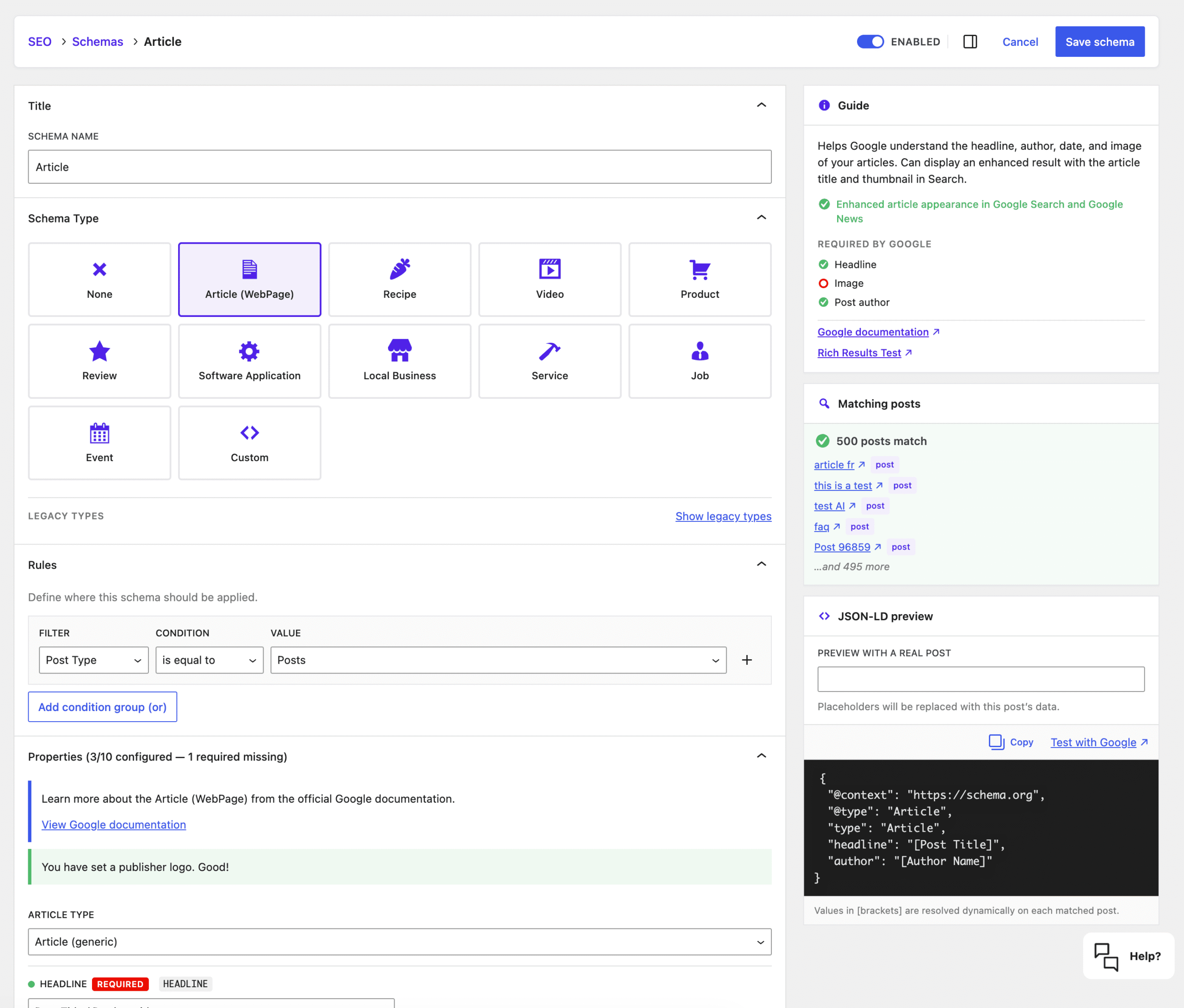
SEOPress supports specific schema options for when you need them, but most sites should focus on mastering these three core types first. The smartest schema strategy mirrors your content strategy: deliberate, streamlined, and designed to deliver user value.
6. The redirection switch
As your site grows, URL changes are inevitable. Products get retired, pages get rebranded, and sometimes that permalink setup from three years ago suddenly looks like a terrible decision. Without proper redirect management, every change becomes an SEO pitfall – valuable backlinks and rankings quickly dissolve into 404 errors. A 301 redirect acts as a permanent forwarding address, signalling to both browsers and search engines: “we’ve moved – here’s the new location.” But handling redirects via .htaccess files is unnecessarily hazardous for anyone who isn’t a developer. One small mistake can take your whole site offline.
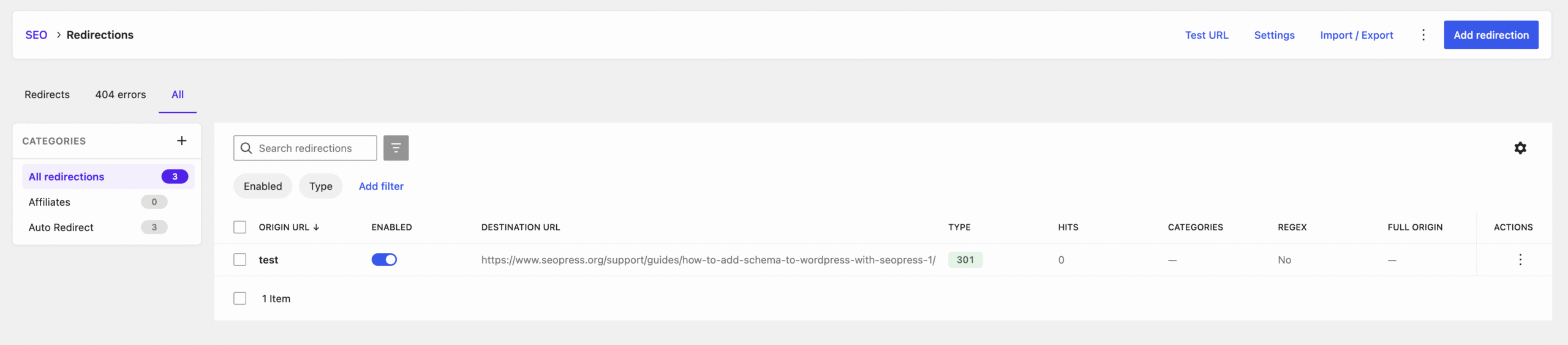
For any site planning to last beyond six months, this is essential maintenance that protects years of SEO investment from disappearing overnight.
7. The monitoring switch
Your final switch is all about shifting perspective: instead of stressing over daily ranking swings, focus on the health of your site’s systems. Checking positions every morning fuels anxiety but delivers little real insight. What really matters is knowing your technical foundations remain strong. For new sites, the Coverage report in Google Search Console should be your guiding star. Those painful weeks of flatlined impressions are over the moment “Valid” pages start to appear – clear evidence your setup is correct and Google is finally acknowledging your site.
- GSC Coverage scan – Any critical errors or sudden drops?
- Sitemap health check – Still processing smoothly with no validation errors?
- Speed test spot-check – Have new images or plugins slowed things down?
- 404 error patrol – Any new broken links needing quick redirects?
Following this routine turns you from an anxious site owner into a confident webmaster. The distinction is simple: professionals don’t get rattled by normal fluctuations – they maintain systems with discipline. With SEOPress pulling Google Search Console data straight into your WordPress dashboard, your monitoring process runs from one streamlined hub where genuine issues are caught and fixed long before they affect your rankings.
Your WordPress SEO foundation is now bulletproof
You’ve reshaped your entire approach to WordPress SEO. It’s no longer about chasing every new tactic or fiddling with endless tweaks. Instead, you’ve put a solid defensive system in place – one that protects your site’s ability to be discovered. From here, SEO shifts from a constant construction project to straightforward upkeep. With the groundwork secured, you can put your energy where it counts – creating outstanding content that genuinely serves your audience. No more worrying about plugin settings or getting lost in technical rabbit holes. Your site’s infrastructure is steady, your visibility safeguarded. Ready to put these switches into action with confidence? SEOPress PRO brings all the tools in this guide into a single professional package. From automatic sitemap splitting to visual schema builders and redirect management, it’s built for people who want reliable results without unnecessary complexity.
Start your SEO transformation with SEOPress PRO today.


