SEOPress PRO 9.5 is required.
Register to Mistral
The first step is to create an account on Mistral website.
We strongly invite you to register a credit card to avoid any errors from the Settings, Billing page of your Mistral AI account.
Create your API key
From the AI Studio console of Mistral, click on API Keys (left panel).
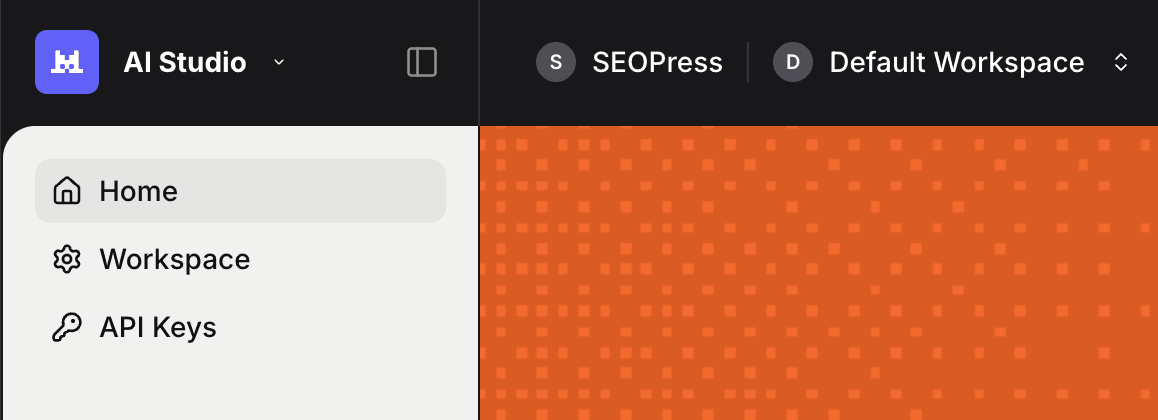
Click Create a new API key button.

Enter a name for your API key and an expiration date (optional).

Validate.
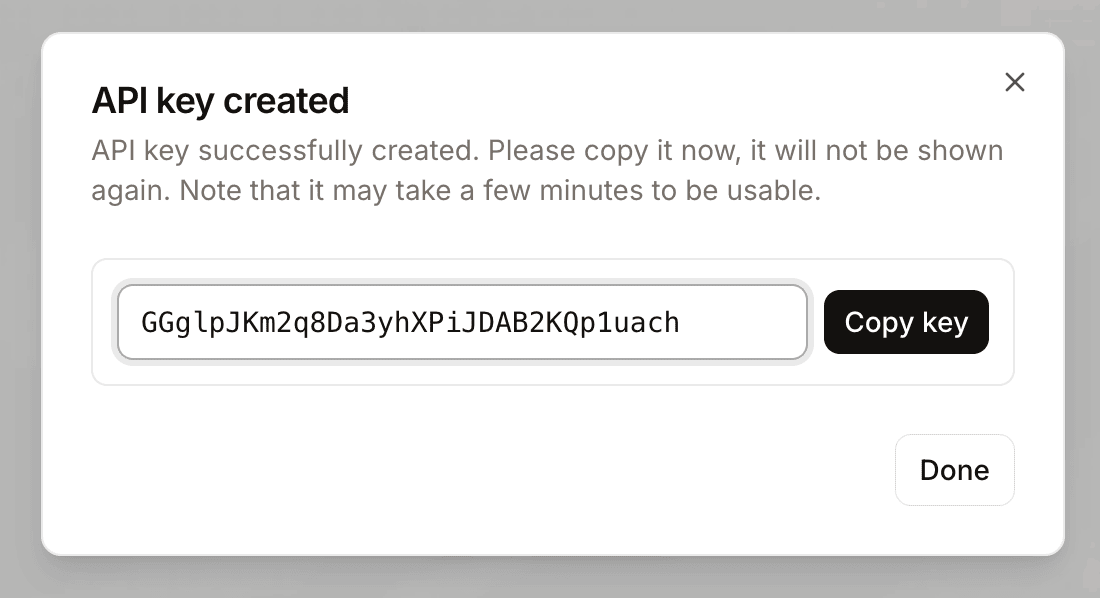
Copy your new Mistral AI API key.
Next, you will need to enable “Pay as you go” (bottom left of the screen on Mistral’s console).
What information is sent to Mistral AI?
To get better results and maximize our chance to have a relevant answer from the AI, we send:
- your post content (if not possible your post URL),
- your post language,
- your target keywords (and we ask to put at least one of them in the SEO metadata in return).
Enable Mistral in SEOPress
Go to SEO, PRO, AI tab.
Select Mistral AI from AI provider option.
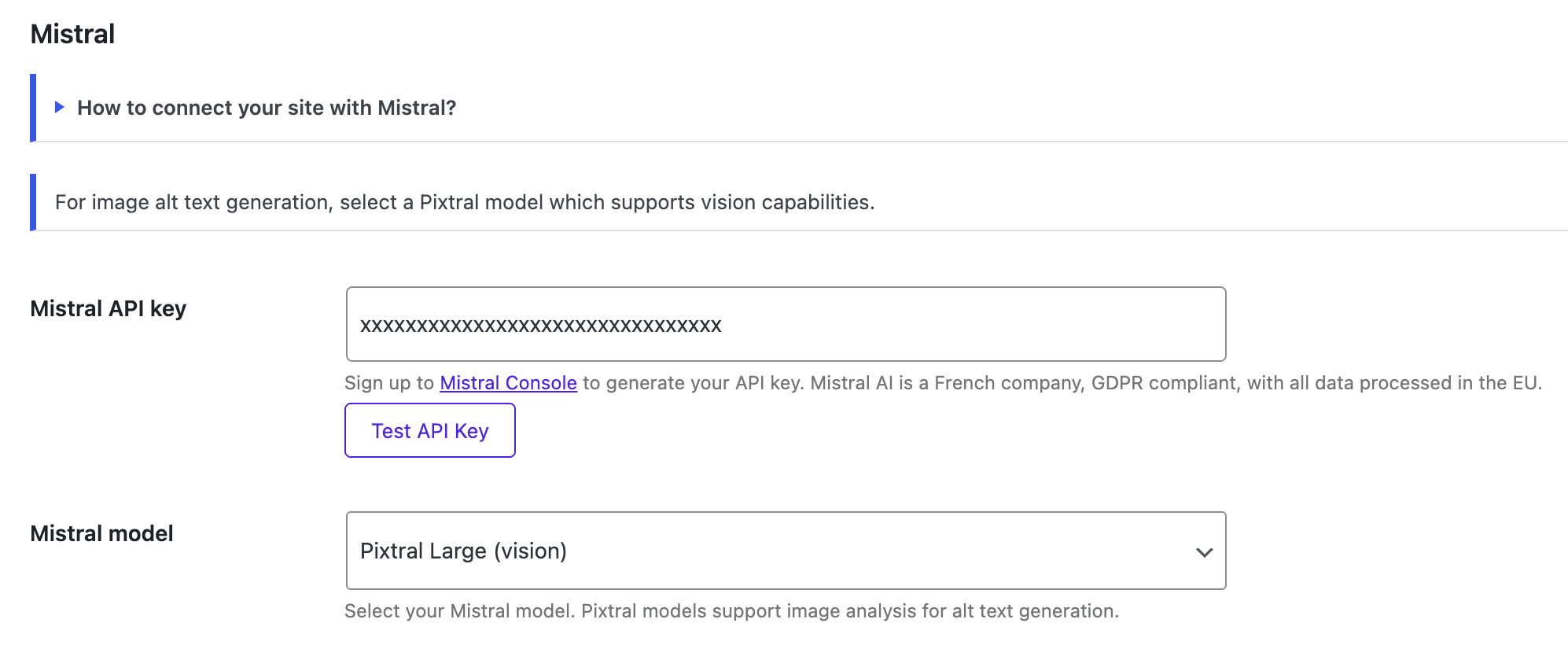
Paste the key to Mistral API key field.
Save changes.
Add my Mistral AI key to wp-config.php
By adding this code below:
define( 'SEOPRESS_MISTRAL_KEY', 'XXXXXXX' );
You will store your Mistral API key in your wp-config.php file instead of your database. This is more efficient on a multisite network for example but also more secured.
Generate SEO, social and image metadata with AI
Now you have linked your Mistral AI account with your WordPress site, you can use AI to:
Common errors
Quickly test your Mistral API key by going to SEO, PRO, AI tab.
Then from Mistral section, click Test API key button.
Wait a few seconds to get a positive or negative answer from Mistral server.
From the AI Logs section (SEO, PRO, AI tab), you will see the messages returned by the AI used.
401 – Invalid API Key
- What it means: Your Mistral API key isn’t working
- How to fix: Check that you’ve entered the correct API key in SEOPress settings
403 – Permission Denied
- What it means: Your API key doesn’t have access to this feature
- How to fix: Verify your Mistral plan includes the features or models you’re trying to use
429 – Too Many Requests
- What it means: You’ve made too many requests too quickly
- How to fix: Wait a minute and try again. Consider upgrading your Mistral plan if this happens often
500 – Server Error
- What it means: Something went wrong on Mistral’s end
- How to fix: Wait a few moments and try again
503 – Service Unavailable
- What it means: Mistral’s servers are temporarily unavailable
- How to fix: Wait 30-60 seconds and retry your request
400 – Bad Request
- What it means: There’s something wrong with your request format
- How to fix: This is usually a plugin issue. Contact SEOPress support if you see this error