

Ever tweaked your robots.txt, hit save, and then watched Google Search Console stubbornly cling to the old version? You’re in good company. This WordPress quirk has left plenty of site owners scratching their heads, wondering if they’ve broken something or if Google’s just ghosting their updates. Here’s what’s really happening: WordPress spins up a “ghost” robots.txt file that can quietly overrule your edits. It lives behind the scenes – nowhere to be found in SFTP or your file manager – yet it’s the one search engines actually obey. So while you’re editing one file, WordPress might be serving another entirely. The good news is that once you know how this split system works, fixing it is a breeze. In this guide, we’ll demystify why your changes keep vanishing and show you how to make them stick for good. Let’s dive in.
What is a robots.txt file?
Think of robots.txt as a velvet rope at your website’s entrance – it politely suggests which areas search engine crawlers should and shouldn’t explore. Found at example.com/robots.txt, this simple text file acts as your first communication with bots like Googlebot before they start crawling your site. The key distinction to note is that robots.txt controls crawling, not indexing. This means it tells bots where they can go, not what they can show in search results.
A page blocked in robots.txt can still appear in Google’s results if other websites link to it – Google will display it with limited information, noting “No information is available for this page.”
The mystery of the disappearing WordPress robots.txt
Here’s where things get tricky, and why so many WordPress users pull their hair out over robots.txt. Your site actually has two potential robots.txt files competing for control:
- The virtual file lives only in WordPress’s memory. You can’t see it via SFTP or your hosting file manager because it doesn’t physically exist on your server. This phantom file is what SEO plugins like SEOPress typically edit. WordPress generates it on the fly whenever someone visits
example.com/robots.txt. - The physical file is an actual text file sitting in your site’s root directory (usually public_html). If you’ve ever uploaded a robots.txt file via SFTP or created one through your hosting control panel, this is what you made.
How to check which robots.txt your site is using
Diagnosing your robots.txt mystery takes just a few simple steps. Start with this single-step check: Open your browser and navigate to example.com/robots.txt (replace “example” with your actual site). What appears on screen is the definitive live version that search engines see. This is your source of truth, regardless of what any plugin or file manager shows. Next, run a comparison check:
- Open your SEO plugin’s robots.txt editor.
- Compare its contents with what you saw in your browser.
- If they don’t match, you’ve found your culprit – a physical file is overriding your plugin settings.
For authoritative verification, use Google’s URL Inspection Tool to test the effect of your live robots.txt file on a per-URL basis:
- Log in to your Google Search Console property.
- In the search bar at the very top, paste the full URL of a specific page you want to check (e.g.,
https://www.example.com/example-page). - Wait for the tool to retrieve the data from the Google index, then, in the Page indexing section, look for Crawl allowed. This is the definitive answer you are looking for:
- If it says Yes, then Googlebot believes it is allowed to crawl this URL according to your robots.txt rules.
- If it says No and cites Blocked by robots.txt, then you have 100% confirmation that your live robots.txt file is blocking Google from crawling that specific page.
To be extra sure, you can click Test Live URL to see what Google finds in real-time, which will also check your robots.txt file as part of its analysis. With a detailed walkthrough on interpreting these warnings, you can learn exactly how to fix the ‘Blocked by robots.txt’ error on WordPress.
Method 1: The simple plugin way to manage your WordPress robots.txt
Most SEO plugins offer a robots.txt editor, but they share a critical flaw – they’ll happily let you edit away without warning that a physical file might be overriding everything. You could spend hours perfecting your rules, never realizing your changes are being completely ignored. SEOPress PRO breaks this pattern with a unique diagnostic feature.
When you open its robots.txt editor, it automatically detects if a physical file exists and displays a clear warning message. No more guessing games or wasted effort.
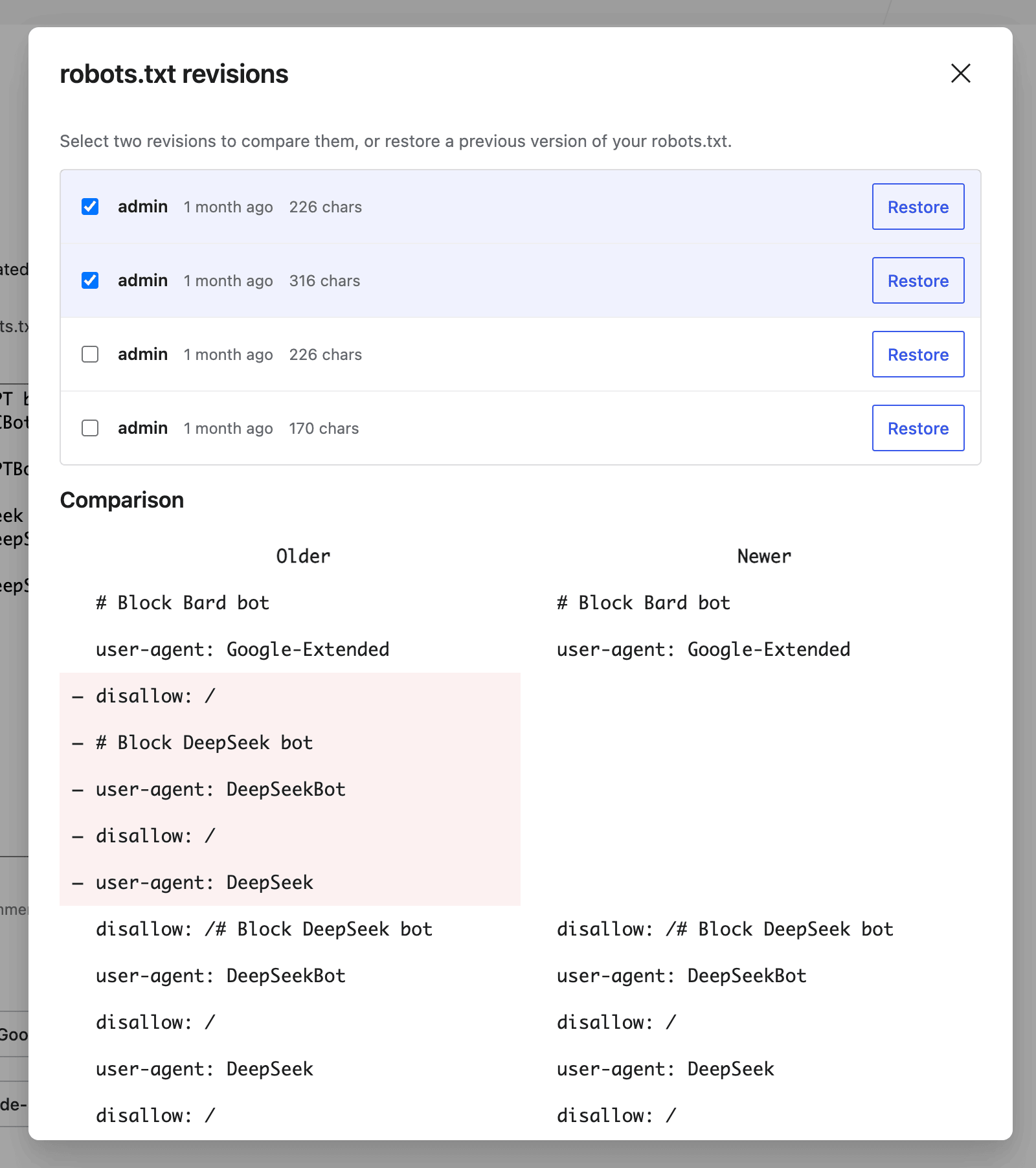
Taking control with SEOPress is refreshingly straightforward:
- Navigate to SEO → PRO → robots.txt in your WordPress dashboard.
- If a physical file exists, you’ll see the warning immediately.
- Choose to either delete the physical file or edit it directly through SEOPress.
- Make your changes and save – SEOPress ensures they actually take effect.
The built-in conflict detection removes all the technical detective work. You’ll know instantly which file is active and can make informed decisions about how to proceed. With SEOPress, managing robots.txt becomes what it should be – a simple task that takes minutes, not hours of troubleshooting.
Method 2: Manual robots.txt file creation in WordPress
This method is for users with SFTP or file manager access and who prefer direct file control. However, this method is also the primary reason users get confused, as it creates a ‘physical’ file that can override your plugin’s settings without you realizing it. Here’s how to create a robots.txt file manually:
- Create the file: Name it exactly robots.txt (all lowercase, no spaces). Use any plain text editor – Notepad++, TextEdit, VS Code, Sublime Text, etc. Just make sure it’s plain text, not Word or rich text formatting.
- Add your custom rules: Here’s an example:
User-agent: *
Disallow: /wp-admin/
Allow: /wp-admin/admin-ajax.php
Sitemap: https://example.com/wp-sitemap.xml
Code breakdown:
- The
*inUser-agent: *means this applies to all bots/crawlers. Disallow: /wp-admin/blocks crawlers from accessing the admin dashboard area.Allow: /wp-admin/admin-ajax.phpexplicitly permits crawlers to access the admin-ajax.php file, which is essential for handling Asynchronous JavaScript and XML (AJAX) requests on the frontend of many themes and plugins.- Sitemap directs crawlers to your sitemap, which helps them index your site properly.
- Save the file: Ensure it’s saved as plain text with the exact name robots.txt.
- Connect via SFTP: Use an SFTP client like FileZilla to connect to your web hosting server. Navigate to the root directory of your website – typically named public_html, www, or htdocs.
- Upload the robots.txt file: Drag and drop or upload the file to your root directory. It must be at the same level as your wp-admin and wp-content folders.
- Set permissions: Set the file’s permissions to 644 if needed. This makes it readable by everyone but only editable by you. Most hosts handle this automatically, but it’s worth checking.
⚠️ This is the source of the conflict!
When you follow the steps above, you are creating a physical robots.txt file. As we explained earlier, this physical file will always override the virtual file managed by WordPress and SEO plugins. If you have this file on your server, any changes you make in the SEOPress (or any other plugin) editor will be completely ignored.
This is the #1 reason why users get frustrated.
They’ll spend time perfecting their robots.txt rules in their favorite SEO plugin, hit save, check their site, and wonder why nothing changed. The physical file was silently winning the entire time.
While the manual method offers direct control, it requires technical access and introduces the risk of this override conflict. You’ll need to remember to update the physical file directly every time you want to make changes, bypassing the convenience of your WordPress dashboard entirely.
For confident, hassle-free management directly from your dashboard, the plugin method is far more reliable. SEOPress’s ability to detect and warn about physical file conflicts makes it the superior choice for most WordPress users who want to avoid this common pitfall.
Recommended WordPress robots.txt template
Stop copying those bloated robots.txt templates floating around the internet. Most are outdated relics from WordPress’s early days, filled with rules that do more harm than good. Modern WordPress sites need minimal, purposeful directives – not pages of restrictions.
As shown in Method 2, the vast majority of WordPress sites only really need these four lines:
User-agent: *
Disallow: /wp-admin/
Allow: /wp-admin/admin-ajax.php
Sitemap: https://example.com/wp-sitemap.xml
These four lines cover security, crawl efficiency, and sitemap access – nothing more, nothing less.
Harmful rules to remove immediately
Stop sabotaging your SEO with these common mistakes:
- ⚠️
Disallow: /wp-content/uploads/– This catastrophic rule prevents Google from seeing your images. Kiss your image search traffic goodbye. - ⚠️
Disallow: /wp-content/plugins/– Blocking this folder can break how Googlebot renders your site. Modern plugins often load critical CSS and JavaScript from here. Block it, and Google might see a broken version of your pages. - ⚠️
Crawl-delay: 10– Google hasn’t supported this directive since 2019. Including it just clutters your file with useless instructions. It’s like shouting directions in a language nobody speaks.
Take control of your robots.txt for good
The mystery is solved: your WordPress robots.txt confusion stems from the virtual vs. physical file conflict. While you’ve been editing one version, another has been secretly controlling what search engines see. This hidden battle explains why your changes disappear and why different tools show different content. You now have the knowledge to diagnose and fix this issue yourself.
But why wrestle with technical complexities when there’s a simpler path? SEOPress PRO eliminates the guesswork by automatically detecting file conflicts and warning you before you waste time on edits that won’t stick.
Stop letting invisible files control your SEO destiny. With SEOPress PRO’s intelligent conflict detection, you’ll always know exactly which robots.txt is active and make changes that actually count.
Take command of your crawl directives once and for all. Ready to manage robots.txt without the hassle?
Check out SEOPress PRO and join thousands of WordPress users who’ve already simplified their SEO workflow.


